
HTConnect Support
How can we help?
Find help for internet and NBN, mobile and travel eSIM, BizCloud PBX, domains, websites, email and your account.
Browse help topics
Getting Started & Account
Internet & NBN
Mobile & Travel eSIM
Business Phone & PBX
Domains, Websites & Email
Legal & Service Documents
Log in to WordPress from cPanel (auto-login)
-
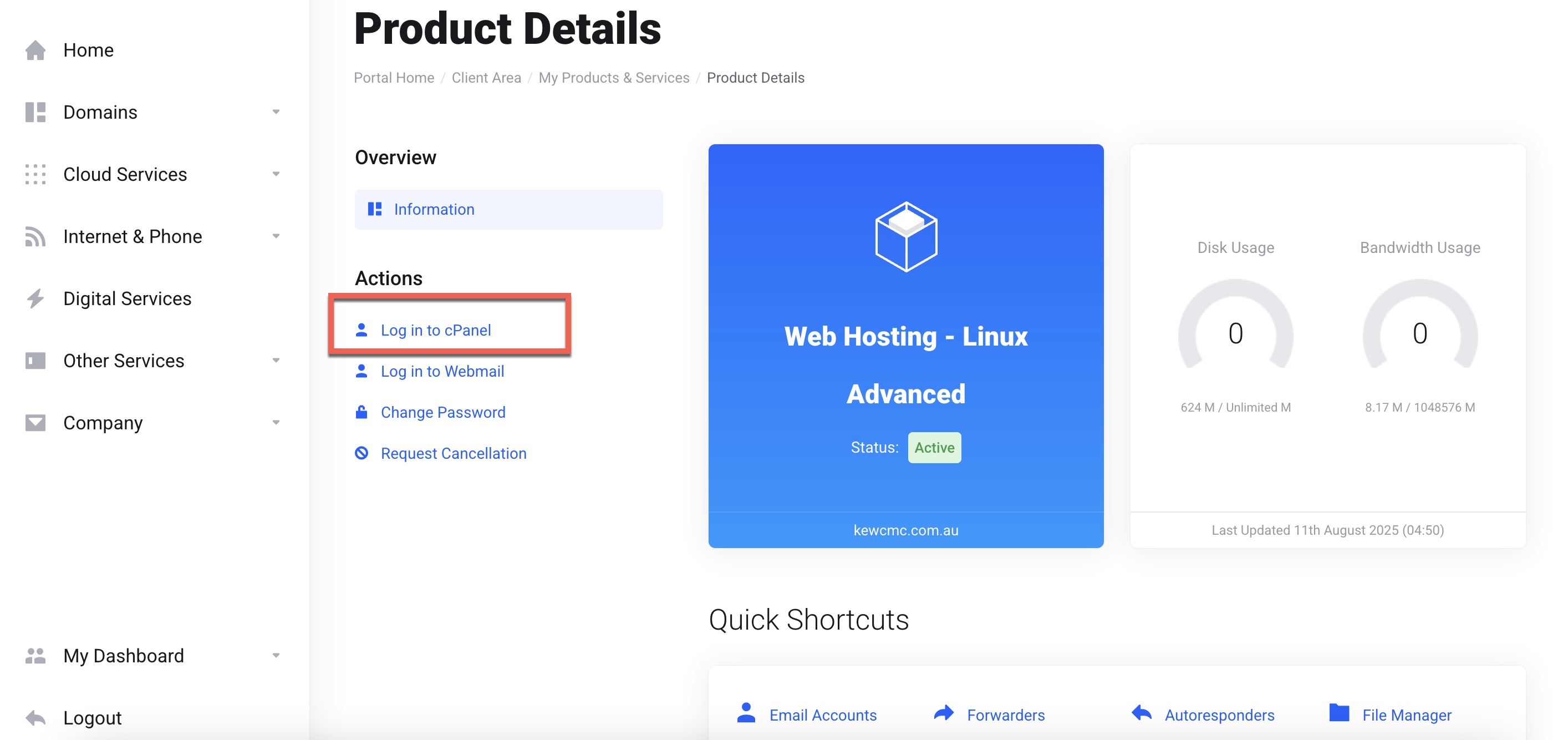
Go to https://hashtech.center and sign in to your client area.
-
Open My Products & Services → click your hosting plan.
-
In the Actions box, click Log in to cPanel.
-
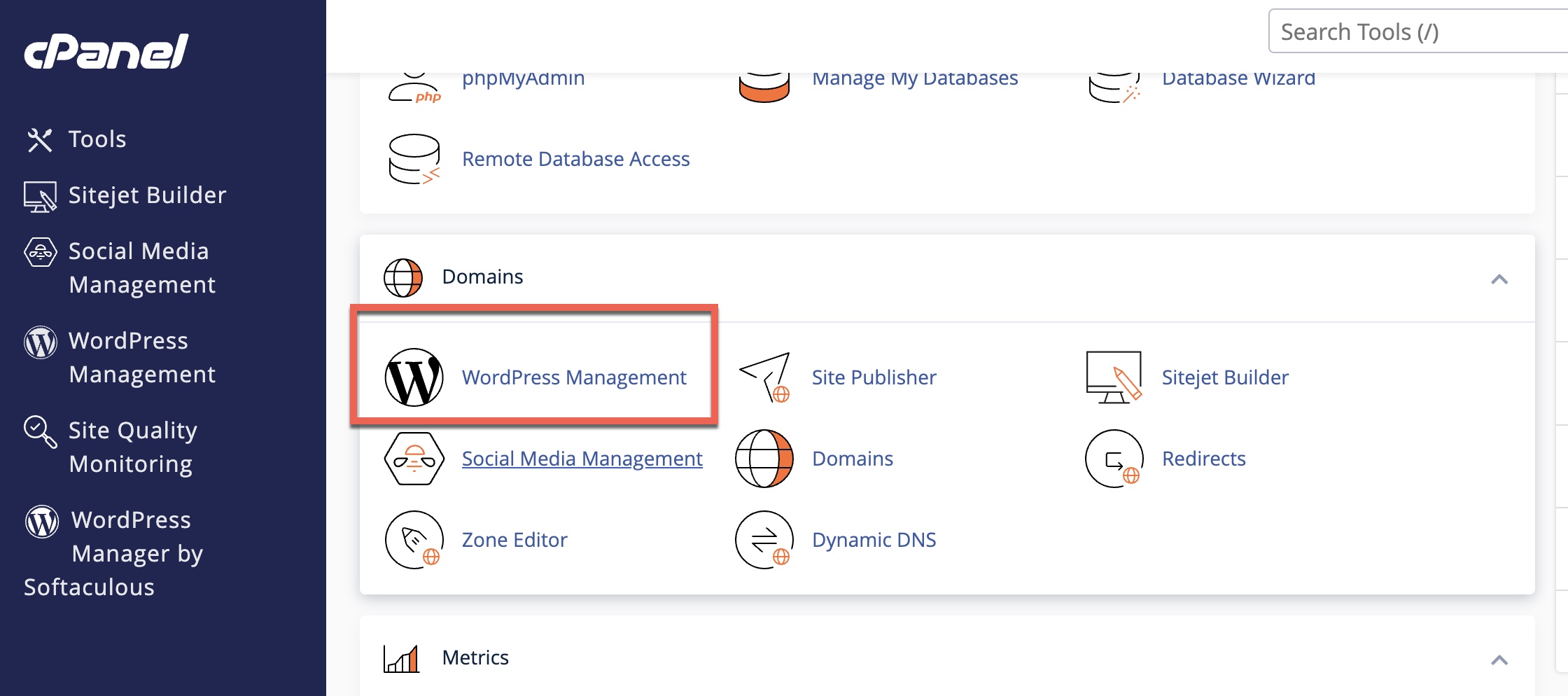
In cPanel, use either of these modules:
-
WordPress Management (WordPress Toolkit), or
-
WordPress Manager by Softaculous (under Software).
-
-
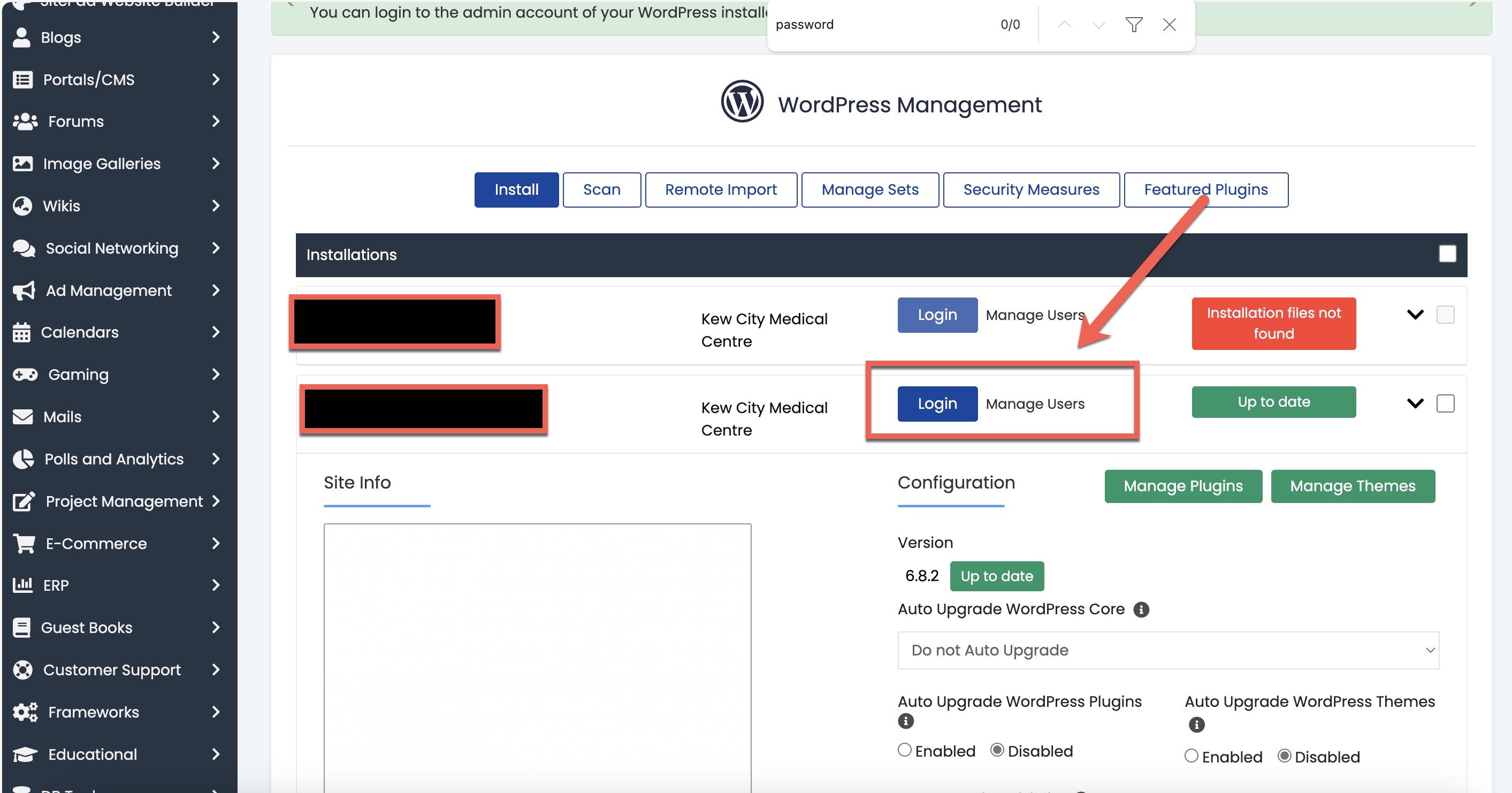
Inside the module, find your site (choose the correct domain if you have more than one).
-
Click Login (sometimes shown as “Admin” or an arrow icon).
-
You’ll be taken straight into /wp-admin without typing a password.
or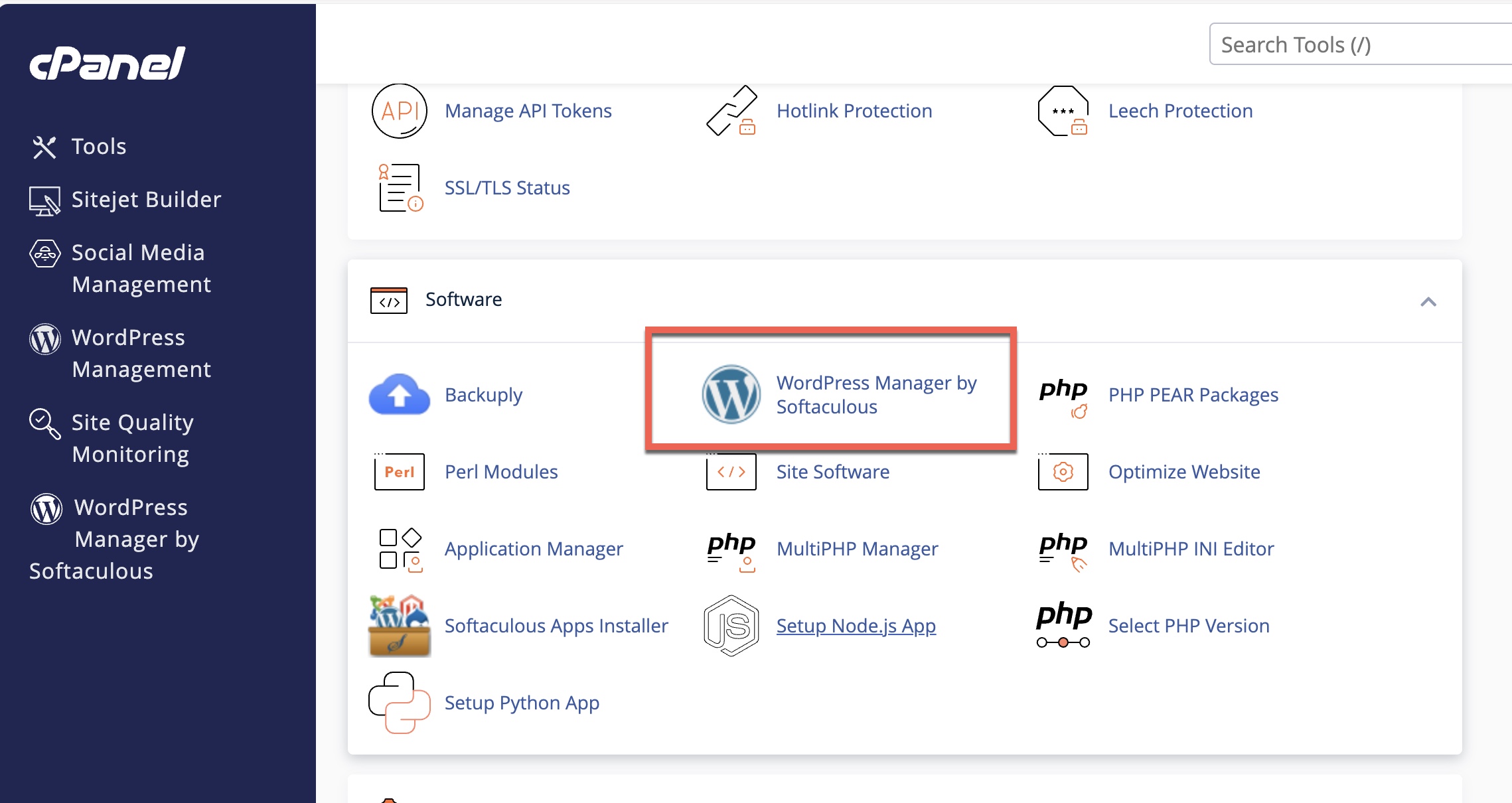
-
Reset your WordPress Admin password (3 options)
Option A — via WordPress Manager / Toolkit (recommended)
-
cPanel → open WordPress Management or WordPress Manager by Softaculous.
-
Select your installation → Edit / Manage.
-
Find Admin Account (or Change Password) → choose the admin user → set a new password → Save.
Option B — from the WordPress login page
-
Click Lost your password?
-
Enter the admin username or email → check email and follow the reset link.
Option C — last resort (phpMyAdmin)
-
cPanel → phpMyAdmin → open your site’s database.
-
Open the wp_users table (prefix may differ, e.g.,
wpabc_users). -
Edit the admin user → set user_pass to a new value and choose MD5 as the function → Save.
-
Then log in and immediately change the password again from Users → Profile (WordPress will re-hash securely).
-
Tips
-
If you don’t see WordPress Manager by Softaculous, scroll to the Software section in cPanel.
-
If multiple installs appear, match the Path/Domain to the site you want.
-
After a password change, clear your browser cache or try an incognito window if login loops.
 EN
EN